
This page describes how to generate an application specific configuration file, and how to point an application shortcut to use these configuration files.
Configuration File Creation
Navigate to the application’s System folder. You can do this by right-clicking on the application shortcut and selecting Open file location. Find jsconnection.exe, right click and select Run as administrator.
You will require the application administrator password to enter the database credentials and generate an application configuration file.
Enter this on the jsconnection login screen. If you have forgotten the administrator password, contact support@jane-systems.co.uk.
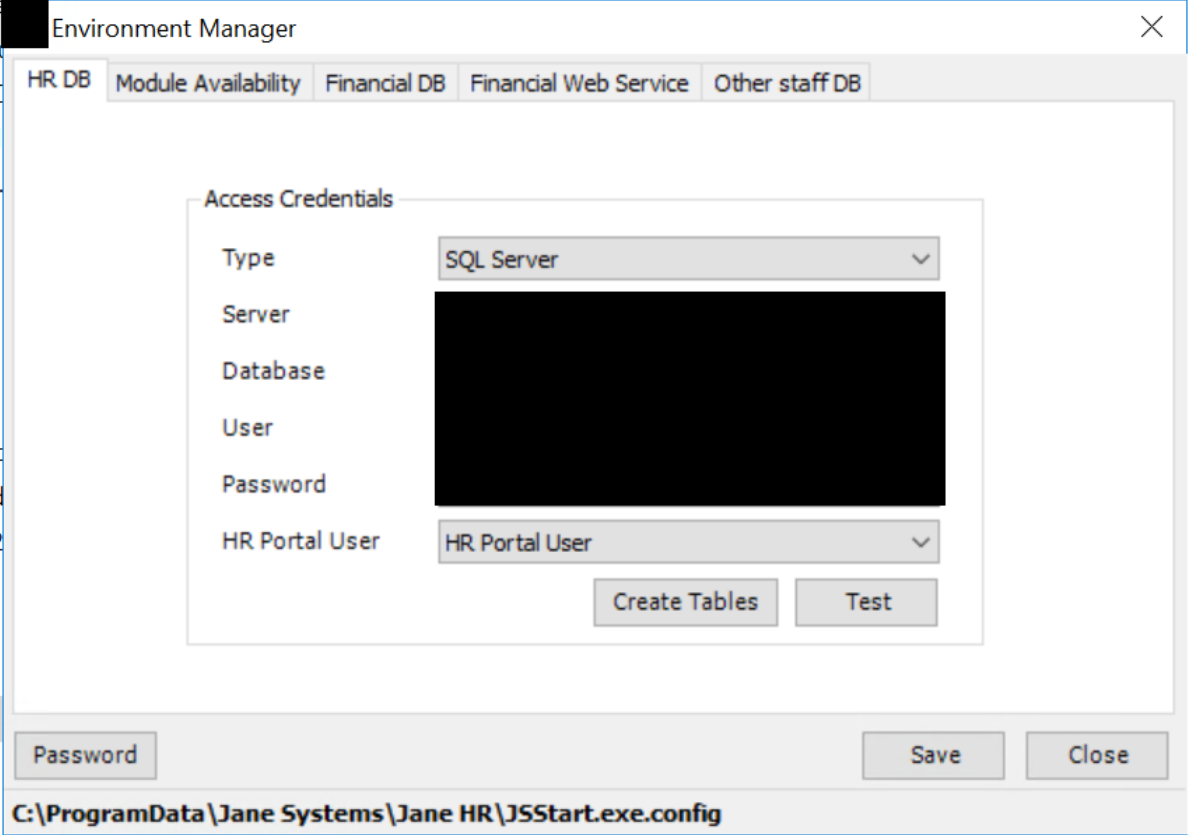
Once you have entered the Environment Manager application configuration settings, click the Save button in the bottom right to save the settings.
This will save a config file to C:\ProgramData\Jane Systems\Jane HR called “JSStart.exe.config”.
By default, the software looks here for JSStart.exe.config to find the connection details, however, shortcuts can be configured to use a different config file other than “JSStart.exe.config” (see section on Pointing Shortcut to Specific Config File).
Pointing Shortcut to Specific Config File
You will need the configuration file for the database. Ensure this is placed in C:\ProgramData\Jane Systems\Jane HR with any other configuration files.
Right click on the desktop > New > Shortcut
Enter the location of JSStart.exe (found in the system folder for the windows application). Click Next and then name the shortcut appropriately.
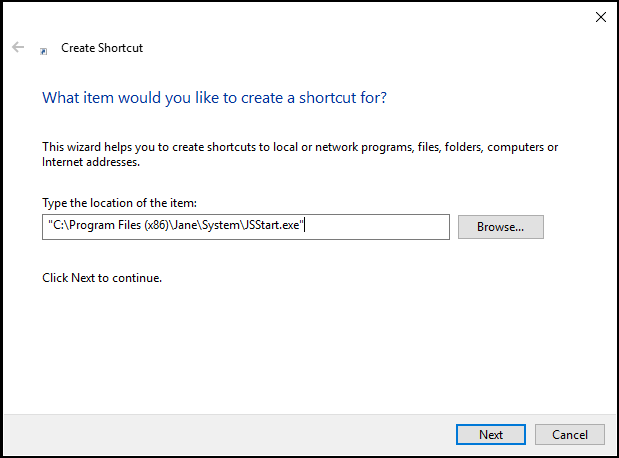
Right click shortcut > Properties > In the Target field type the following:
“C:\Program Files (x86)\Jane\System\JSStart.exe” -config Default_Database.config
Default_Database.config can be replaced with the name of any config file in C:\ProgramData\Jane Systems\Jane HR.
“C:\Program Files (x86)\Jane\System\JSStart.exe” -config <FILENAME>.config